

Photos · SubTrade feature
Site photos that
prove your work
Site photos lost in the group chat? In SubTrade every photo lands on the right job, tagged with who took it, when and where. Mark it up, stamp the date, file it in an album and add notes the office can search, all from the phone.
Up and running in under 10 minutes.
Mark it up, stamp it, file it by job. 42 seconds on the phone.
On the phone
Every photo, on the right job
Your crew opens the job on their phone and taps Gallery. Every photo they take lands on that project, not in the camera roll and not in the group chat. Albums keep the client photos, the extras and each visit together, and the office sees them the moment they sync.
- Gallery on every project in the mobile app
- Photos filed to the job they were taken for
- Albums for client photos, extras or each site visit
- Create a new album in one tap
- Synced to the office as soon as the phone has signal


By date
Sorted by day, open any photo
Photos that are not in an album yet are grouped by the day they were taken, newest first, with a count for each day. Tap one to open it full screen with the date and time, then share it, edit it, add it to an album or see its details.
- Unorganized photos grouped by date, with counts
- Full-screen view with date and time
- Share, edit, add to an album or open details
- Swipe through the day’s photos


New feature
Before & after photos New
Pair a before shot with an after shot and SubTrade puts them side by side. The proof speaks for itself, to the GC, the adjuster, or the owner who does not remember it looking that bad.
- Pair any two photos into a before and after comparison
- Side-by-side comparison on mobile and desktop
- Both photos keep their own GPS tag, date, and uploader
- Share the pair with the GC as one link
- Perfect for restoration, repairs, and progress claims


New feature
Mark up your photos New
A photo shows the wall. A markup shows the problem. Draw, circle, drop arrows, and add text right on any site photo, so the crew, the GC, or the inspector sees exactly what you mean without a phone call.
- Draw freehand, circles, and arrows on any photo
- Add text labels right where the issue is
- Original photo stays untouched, markups save as a layer
- Share marked-up photos with the GC or your crew
- Use them in tasks, punch lists, and change orders
Markup tools
Colours, line width and text, right on site
The markup tools are built for a thumb on a jobsite. Pick a colour so the mark stands out against the wall, set the line width, and type a note on the photo where the issue is: column boarded, ready for tape. Pinch the note to resize it, undo or clear all.
- Ten colours, from red to black
- Stroke width for fine lines or heavy marks
- Text on the photo, up to 60 characters, resizable
- Undo and clear all


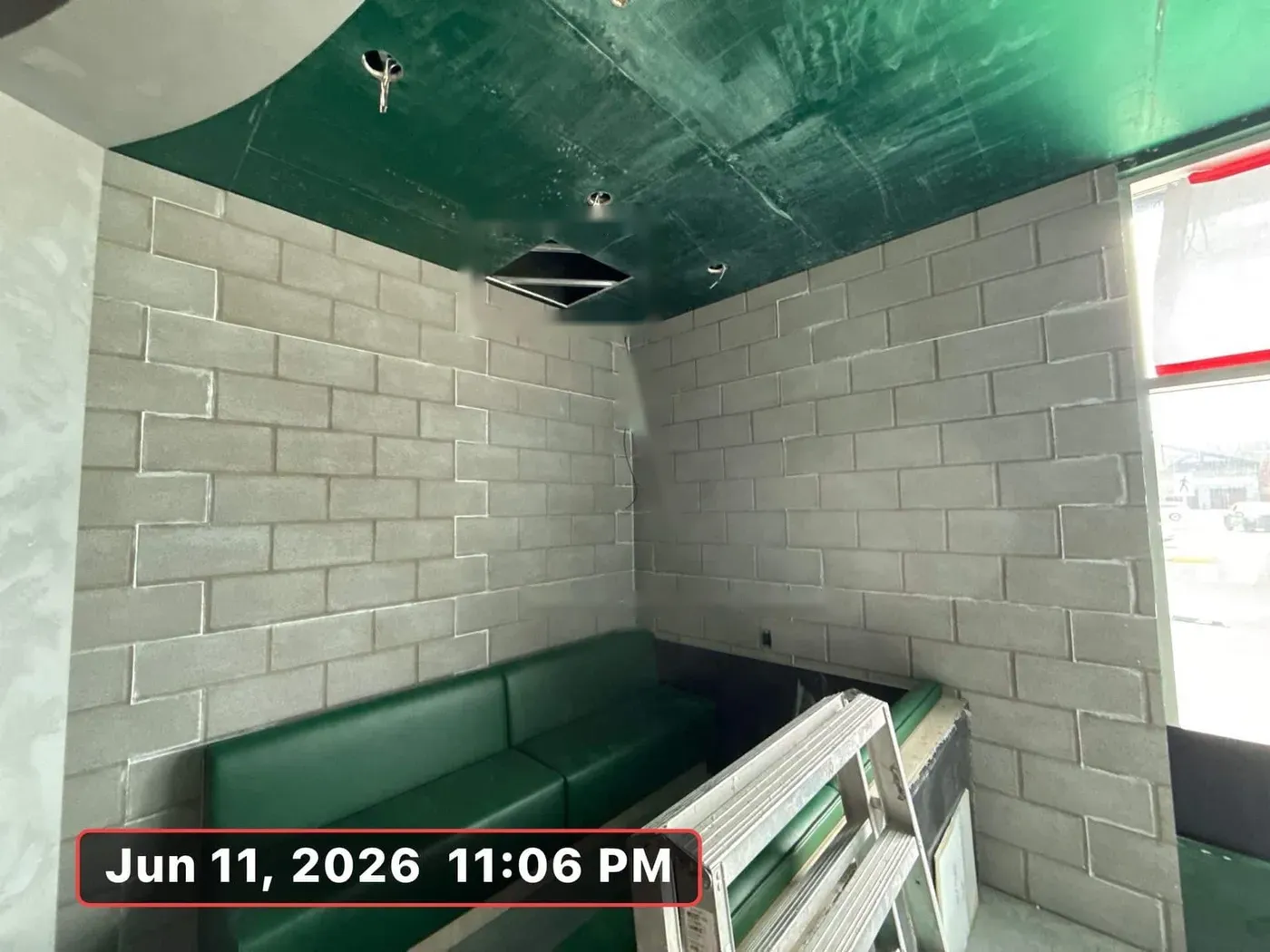
Date stamp
Stamp the date and time on the photo
Burn the date and time right onto the image, so it travels with the photo wherever it goes: an email to the GC, a progress claim, a back-charge dispute. Nobody can crop the timestamp out of the file name.
- Date and time stamped on the image
- Stays on the photo when it is shared or exported
- Add a description before you save

Sharing
Share it clean, or with the notes
Send the GC exactly what they need. Share the image only, with the option to mark it up first, or share the full card with the date, description and tags formatted underneath. Either way it goes out from the job, not from someone’s personal camera roll.
- Share image only, optionally annotated first
- Share full card with notes formatted as a card
- Send by text, email or any app on the phone

Albums
File it in the right album
Move photos into an album in two taps: client photos, a dated site visit, new extras. Each album shows how many photos it holds, so the extras folder is ready when it is time to price the change order.
- Move one photo or several at once
- Pick the destination album from the list
- Photo count on every album
- Extras kept together for change orders and back-up

Notes and tags
Notes and tags the office can search
Every photo has a description of up to 500 characters and tags, plus the name of whoever took it. Write column at grid C4 boarded, ready for tape, tag it, and the office can find it months later without scrolling through four thousand photos.
- Description up to 500 characters per photo
- Tags you can add and search
- Taken-by name on every photo
- Date and time recorded automatically

GPS + notes
Every photo knows who, when & where
Photos taken from the SubTrade mobile app are automatically GPS-tagged with the exact coordinates where they were taken. Add notes, and every upload carries the crew member’s profile icon, so accountability is built in.
- Automatic GPS geotag on every mobile photo
- Map view shows the exact location on site
- Date, time, and uploader stamped automatically
- Latest photos visible right on the project dashboard
- Share photos directly from the app
Common photos questions
Questions, answered straight
Where do my crew’s photos go?
Onto the project they were taken for. Crews open the job in the SubTrade app and take photos from its gallery, so every photo lands on the right job instead of a camera roll or group chat.
Can I organise photos into albums?
Yes. Create albums such as client photos, extras or a dated site visit, and move one photo or several into an album in two taps. Photos not yet in an album are grouped by date.
Are photos automatically GPS tagged?
Yes. Photos taken from the SubTrade mobile app are automatically tagged with GPS coordinates, and a map view in the photo detail shows exactly where on site the photo was taken.
Can I draw on my photos?
Yes. Mark up any photo with freehand drawing, shapes, arrows and text in ten colours and several line widths. The original stays untouched, your markups save as a layer on top.
Can I put the date and time on the photo?
Yes. Stamp the date and time onto the image itself, so it stays visible wherever the photo is shared or exported.
How do before and after photos work?
Pair any two photos into a comparison. SubTrade shows them side by side, and both photos keep their own date, GPS tag, and uploader. Share the pair as one link.
Can I add notes and tags?
Yes. Every photo takes a description of up to 500 characters and tags, so the office can search for it later. The name of whoever took the photo is recorded automatically.
How do I share photos with the GC?
Share the image only, optionally marked up first, or share the full card with the date, description and tags formatted underneath, by text, email or any app on the phone.
Can I see who uploaded each photo?
Yes. Every photo displays the uploader’s profile icon, in the grid view, the dashboard quick view, and the full photo detail. You always know who took what.
Do photos show on the project dashboard?
Yes. The latest photos from the field appear on the project dashboard as your crew takes them, each tagged with who took it.

