

Field Operations · SubTrade feature
Every job,
on one screen
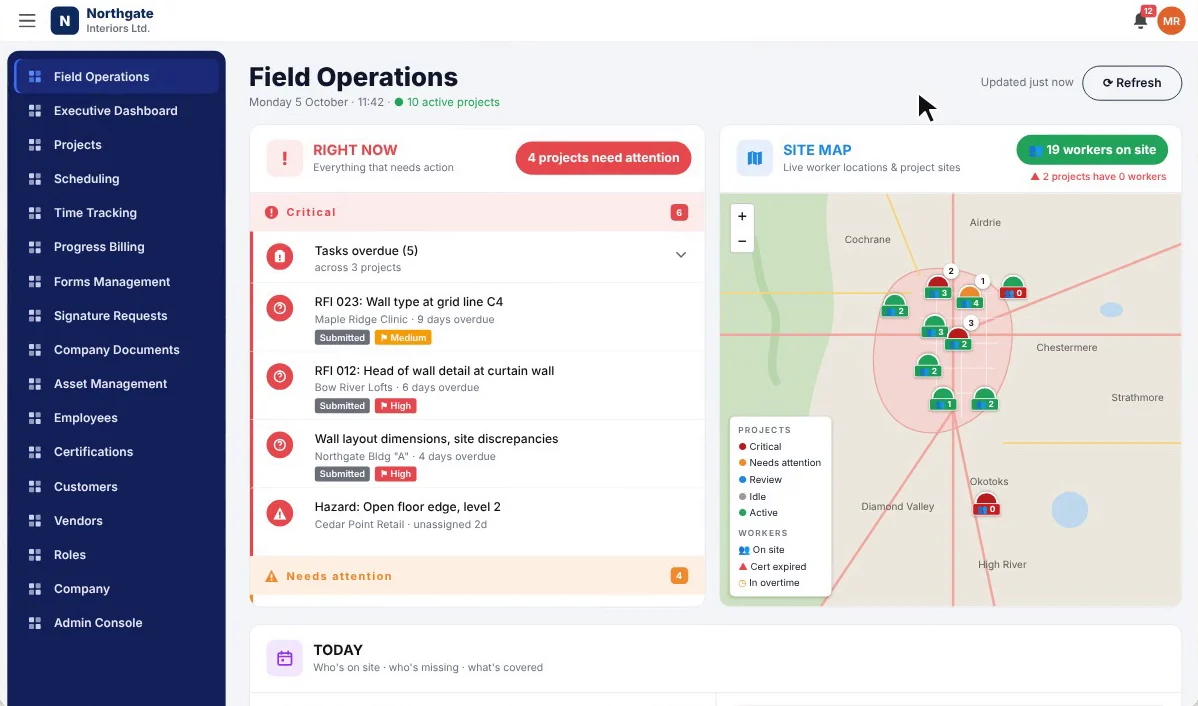
Know every job before the phone rings. Field Operations puts what needs you right now, every crew on a live site map, and who is on site, missing or next on one screen. Run three sites or fifteen without a single status call.
Up and running in under 10 minutes.
Every job on one screen in 38 seconds: what needs you now, the live site map and today's crew.
The command center
Every job, on one screen
Open Field Operations and the whole company is in front of you: what needs action right now, every site on a live map, and today’s crew. Three jobs or fifteen, it is the view an owner actually needs at 7 AM, and it refreshes as the day happens.
- Right Now list, live site map and today’s crew on one page
- Active projects counted at the top
- Updated live, with a refresh when you want it
- Same view on the office monitor, a tablet or a phone
- Drill into any project, task or approval in one click
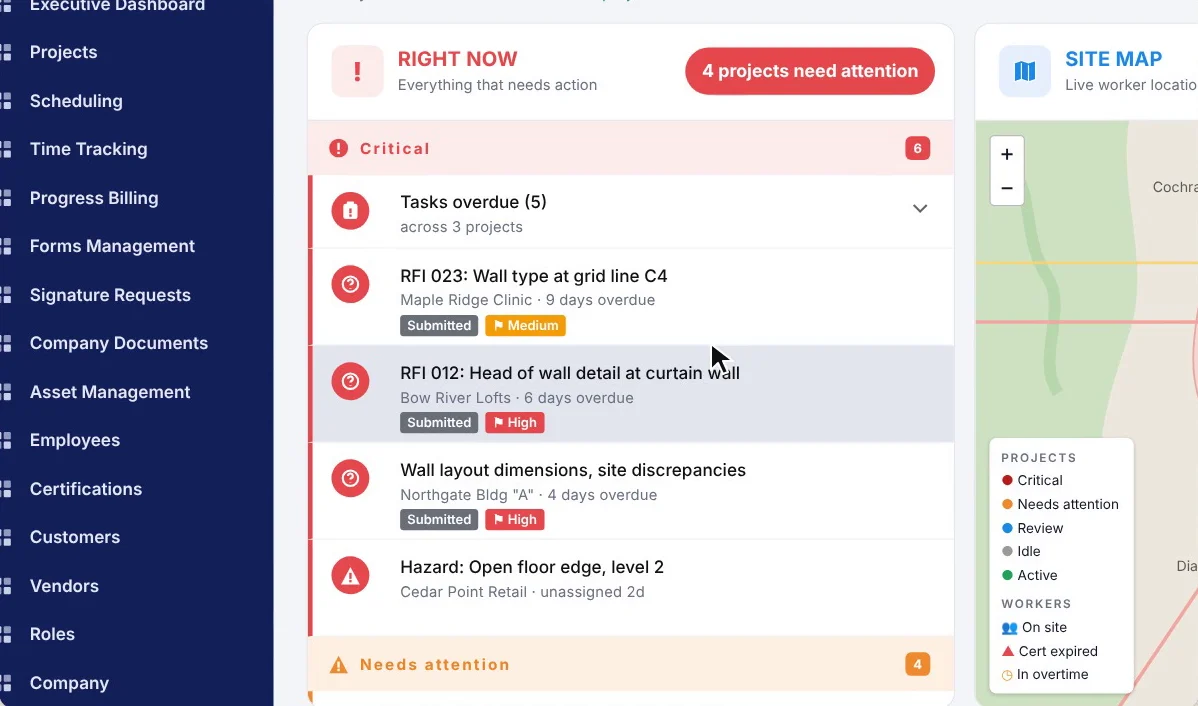
Right Now
What needs you, right now
Everything that needs action across every job, ranked by how urgent it is. Overdue tasks, RFIs past their due date, site discrepancies and open hazards sit under Critical. Signatures needed and certifications about to expire sit under Needs attention. Each one shows the project and how late it is.
- Critical and needs-attention groups, counted
- Overdue tasks across every project
- Overdue RFIs with their status and priority
- Site discrepancies and open hazards, unassigned ones flagged
- Signatures needed and certifications expiring
- How many projects need attention, at the top
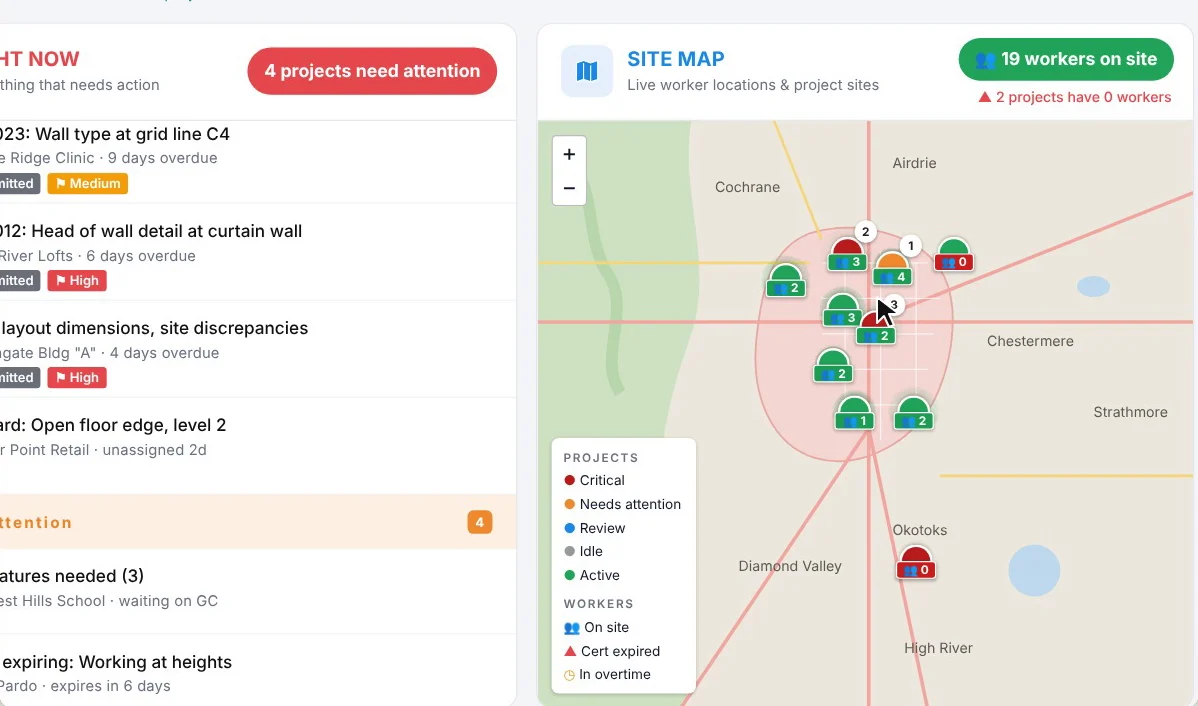
Live site map
Every site, every crew, live
The site map shows every project and every worker on the job, live from their clock-ins. Projects are coloured by status, workers by whether they are on site, in overtime or carrying an expired certification. You see at a glance which site has five people and which has none.
- Every project pinned with its status colour
- Workers on site, live from GPS clock-ins
- Total workers on site, and projects with nobody there
- Critical, needs attention, review, idle and active projects
- Workers in overtime or with an expired cert stand out
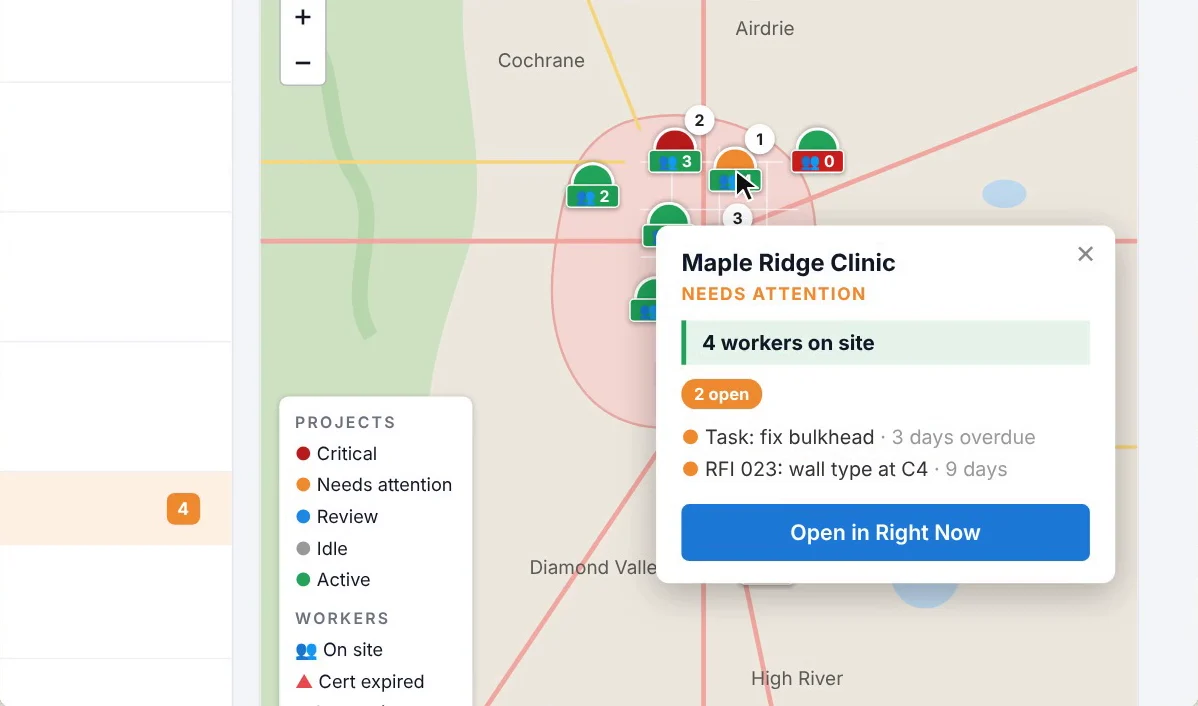
Click a site
Click a site, see what is wrong
Click any project on the map to see how many workers are there and what is open on that job: the overdue task, the RFI still waiting on an answer. One more click opens it in Right Now so you can deal with it.
- Workers on site for that project
- Open items with how many days overdue
- Project status shown on the card
- Open in Right Now with one click
Today
Who is on site, who is missing, who is next
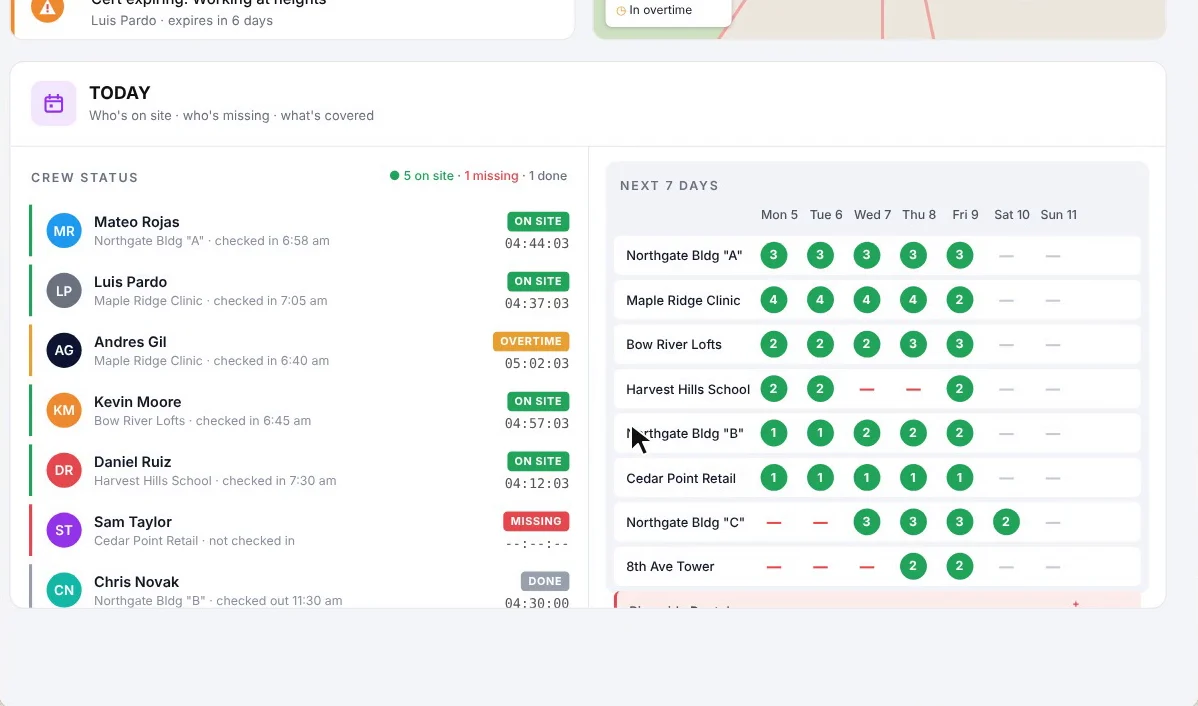
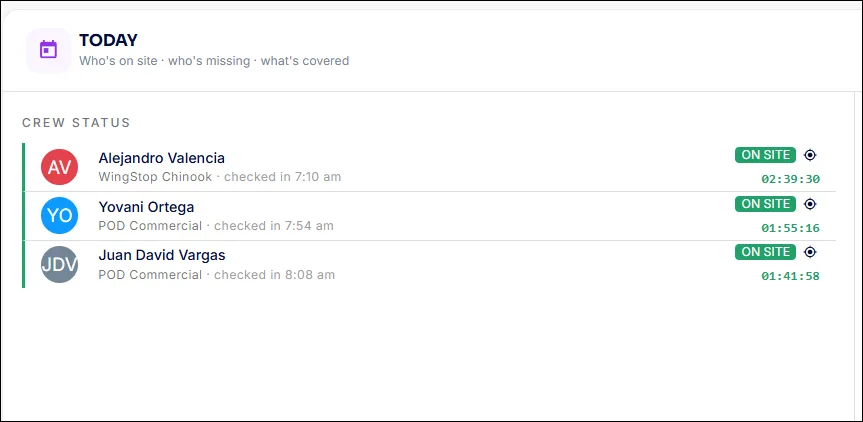
The Today panel lists every worker scheduled for the day with their project, when they checked in and how long they have been on site. On site, overtime, missing and done are marked, and the next seven days of scheduling sit beside it for every project.
- Crew status for the day: on site, overtime, missing, done
- Check-in time and running hours per worker
- Totals at the top: on site, missing, done
- Next 7 days of crew counts per project
- Gaps in the week visible before Monday
The live feed
From first clock-in to last log, watch the day happen
Field data does not wait for Friday. As crews clock in, sign forms, take photos and file logs, everything streams in real time, timestamped and tied to its project. The office finally sees what the field sees.
- GPS clock-ins appear the moment crews start
- Safety forms and FLHAs land as they are signed
- Photos and daily logs stream in from every site
- Change orders and approvals flag themselves for action
- Everything timestamped and filed to its project automatically
Coverage
Know who is missing before the site calls you
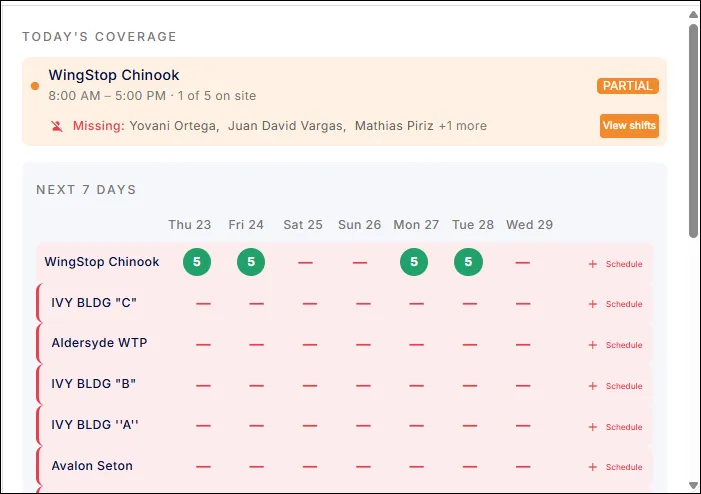
Today’s coverage shows every project’s planned shift against who actually showed up, missing crew flagged by name, and the next seven days of scheduling per site. The gap gets fixed before it becomes a lost day.
- Planned versus actual crew per project, live
- Missing workers flagged by name, not discovered at noon
- Partial coverage warnings before they cost you the day
- Next 7 days of shifts across every project in one grid
- Empty days are one tap from scheduled
Common field operations questions
Questions, answered straight
What is Field Operations in SubTrade?
Field Operations is the live company-wide view: what needs action right now, every site and crew on a live map, and today’s crew status, across every active project, updating in real time.
What does the Right Now list show?
Everything that needs action across every job, grouped into critical and needs attention: overdue tasks, overdue RFIs, site discrepancies, open hazards, signatures needed and expiring certifications, each with its project and how late it is.
Can I see where my crews are?
Yes. The live site map shows every project and the workers on site, from their GPS clock-ins, with the total on site and any project that has nobody there.
How do I know if someone did not show up?
The Today panel lists every scheduled worker with their check-in time, and marks anyone missing, in overtime or done for the day.
Can I see the week ahead?
Yes. The next seven days of crew counts per project sit beside today’s crew status, so gaps in the schedule show up before Monday.
How is it different from the Project Dashboard?
The Project Dashboard goes deep on one job: its money, risk, people and paperwork. Field Operations goes wide across your whole business, showing everything happening on every site at once. Most owners start here and open a project dashboard when a job needs a closer look.
Is the view real time?
Yes. As crews clock in, take photos, sign forms and file logs, the updates appear as they happen, each one timestamped and tied to its project.
Does Field Operations work on my phone?
Yes. The same live view works on desktop, tablet and phone, so you can run the day from the office or the truck.
Does it cost extra?
No. Field Operations is part of SubTrade on every plan.
Live demo
This is what your office sees
Clock-ins, photos, signed extras and draws stream in from every site as they happen. No status calls, no end-of-week surprises — the whole company on one live feed.
Video tutorials
See field operations in the app
Short walkthroughs from the SubTrade team, each with a PDF guide your office can keep.
 PDF guide
Employee time sheets workflow
Review, correct and approve crew hours without the Friday detective work.
 PDF guide
Crew scheduling
Book your crew for the week, repeat shifts and catch double-bookings.
 PDF guide
Project dashboard and templates
Run every job from one screen and start each new one from a template.
 Part 1 of 4 · PDF guide
Forms, Part 1: The forms dashboard
Every form, folder and submission in one place. Start of the 4-part forms series.